Windows guide
How to find a decision in a meeting recording
You know something was agreed, but not in which meeting or which minute. Scrubbing through an hour of video at random is the worst available method. Below are three that work on what the app has already computed: library-wide search, chat with a single recording, and chat across a folder.
Short answer
If you remember even one word that was said, use search. If you only remember the topic, ask the chat about that recording. If you do not even know which meeting it was, ask the folder-level chat.
- Press Ctrl+K, or open “Search” in the sidebar.
- Type a word that may have been said and narrow it with the “Decisions” filter when you want an agreement rather than any mention.
- Click a result. Each one carries a kind label and a timestamp, so you know which recording and which moment it came from.
- Cannot recall the wording? Open the recording and ask the chat directly, for example “what did we agree about pricing”.

Search across the library
The search box sits in the top bar behind Ctrl+K, and separately as “Search” in the sidebar. It covers transcripts, screen events and extracted decisions, and the results can be narrowed with filters: All, Utterances, Events, Decisions.
This is the method for when you remember a specific word: a client name, a number, a feature name. Every result shows the passage with the match highlighted, the recording title and a timestamp, so one click takes you to the right place instead of the start of the file.
Chat with one recording
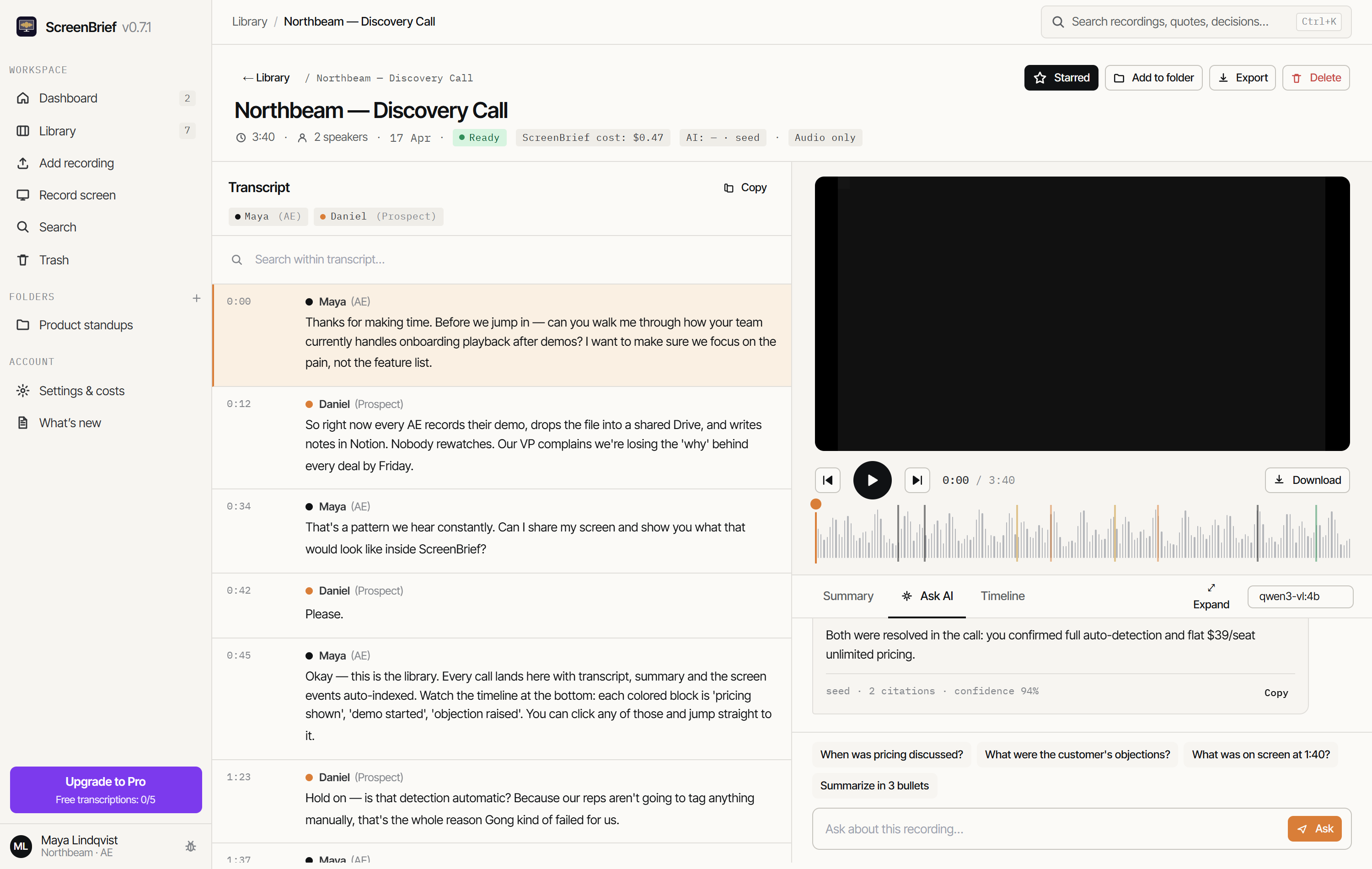
When you know which meeting it was but not the words, open the recording and ask. The chat is grounded in that recording alone, and answers cite the exact moments. If something is not in the recording, the chat says so instead of guessing.
Each citation links to the moment, so you can hear how the agreement was actually phrased rather than accept a paraphrase. That is the part that separates checking from trusting: a summary is always an interpretation, the recording is not.
When you do not know which meeting it was
Recordings can be grouped into a folder, say one project or a series of status calls, and the chat can then answer across the whole folder. The answer draws on every analysed recording in it and says which recording it came from.
The folder chat ships with ready-made questions that cover most cases: “What decisions were made?”, “List all the tasks”, “What themes recur across the recordings?”. It is the fastest route when the agreement is somewhere in a series of meetings rather than in one.
What not to take on trust
- Agreements withdrawn later. Something retracted in the final minutes should not stand on the decisions list; check whether the topic comes back later in the recording.
- Proposals presented as commitments. “I could take that” is not an accepted task; the citation shows whether anyone confirmed.
- Dates nobody said. If the call said “by the end of the week”, a specific date in the notes is the model's addition, not the agreement.
- Names of people and companies. Speech recognition mangles rare names, and the summary repeats the error without warning.
This is why it pays to search by citation rather than by summary alone. Two clicks to hear the original cost less than one decision taken on a misremembered sentence.
When this will not work
- When the recording has not been processed yet. Search runs on the transcript, so until it exists there is nothing to search.
- When the chat has no AI provider connected. Transcription itself runs locally, but chat answers need a chosen model, local Ollama or your own key.
- When the folder chat has no analysed recordings. A folder of freshly added files has nothing to answer from yet.
- When the agreement was never said out loud. If the decision happened in a text chat beside the meeting, it is not in the recording.
Try it on your own recording
The first 5 transcriptions are free, and search with timestamped citations works from the first processed recording.
Get it from Microsoft Store