Windows guide
Transcribe a lecture recording on Windows
Ninety minutes of lecture is roughly fifteen thousand words. Listening to it a second time costs as much as the first. A timestamped transcript turns that material into something you can search, summarise and quote. Below: what to feed it, what comes out, and what this method will not solve.
Short answer
You need the recording file and a program that runs speech recognition on your own computer. Accepted formats are MP4, MOV, MKV, WEBM, AVI, MP3, WAV, M4A and OGG, and one item can be up to 4 hours and 5 GB, so a typical lecture fits with room to spare.
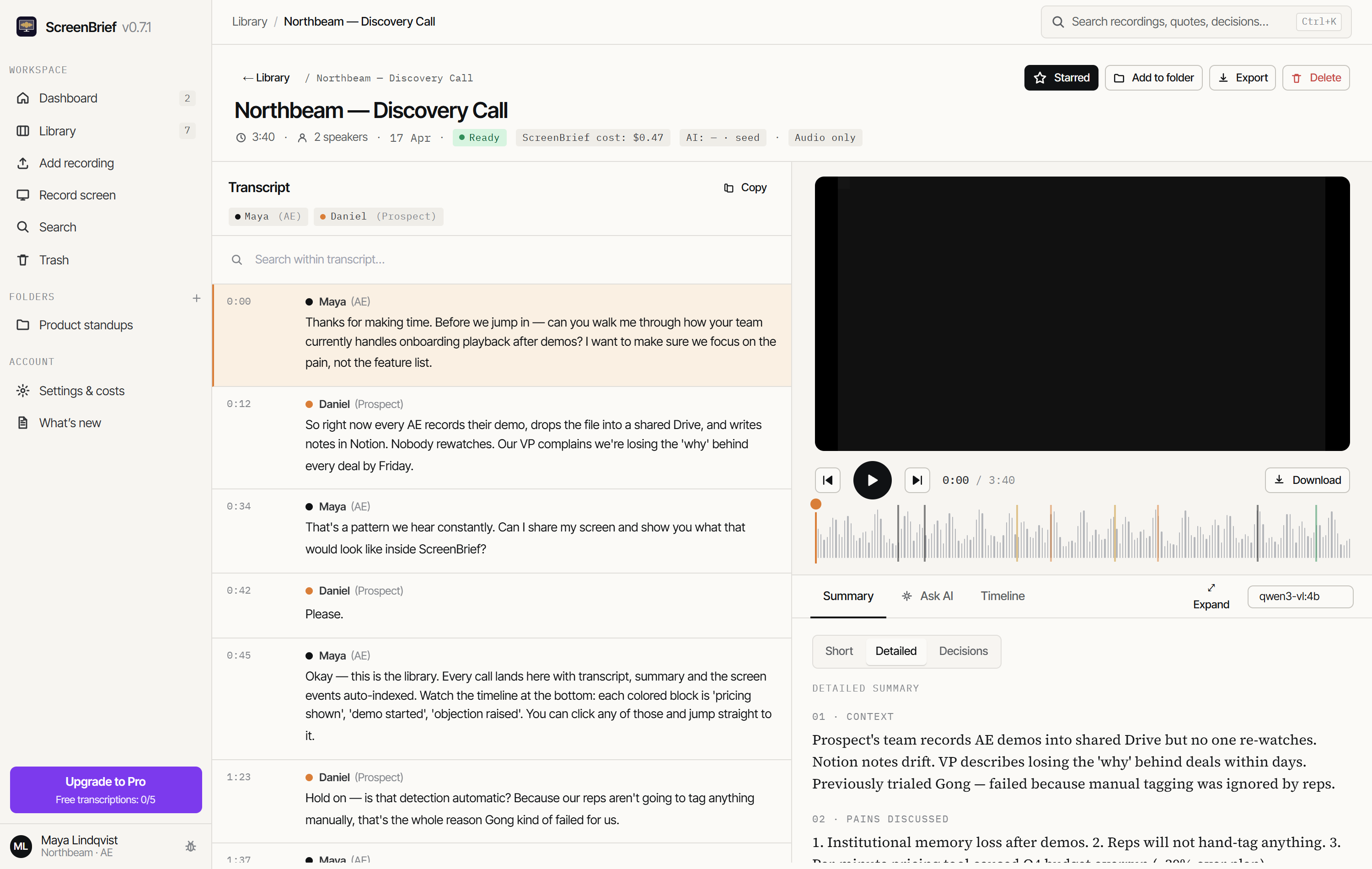
- Choose “Add recording” and pick the file, or drag it into the window.
- Give it a title, and in the “Participants” field put the lecturer and anyone else who speaks. It is a hint for speaker labelling, not a requirement.
- Start the transcription. It runs on your computer; the first one downloads the speech model.
- Read the transcript with timestamps, then the summary and notes from the AI model you choose.
Audio alone is usually enough
If you record on a phone you get an M4A or MP3, and that is the best input for transcription: a smaller file, less processing time, the same text result. Video is worth it when what was on the slides or the whiteboard matters too.
Audio quality decides everything downstream. A phone on the desk in the front row gives a transcript you can read. A phone in the back row of a large, echoing hall gives text full of guesswork, and no model repairs that.
What you get besides raw text
- A transcript with timestamps and speaker labels, searchable from the inside.
- A summary and a list of tasks, if you connect an AI model, local Ollama or your own provider key.
- Export to Markdown, to SRT and VTT subtitles, to PDF via printing, plus copying the full record in one click.
- Chat with the recording, where every answer points at the minute it came from.
The subtitle exports are the underrated part here. If the lecture was recorded as video, you get a subtitle file you can switch on in a player and move through the material sentence by sentence instead of dragging a slider.
How to work with the material afterwards
For studying, the useful order is the reverse of watching: the summary first, then questions to the material, and only then listening back to the passages that turned out to matter.
You ask the questions in the chat grounded in that recording, and the answer arrives with a quote and a minute, so you know where to listen. Library-wide search also helps when you cannot recall which lecture something was in; that is covered in the guide on searching inside recordings.
What this method will not solve
- Mathematical notation. A formula spoken aloud is written out in words, not symbols. For heavily formal lectures a transcript supplements your notes rather than replacing them.
- Slide content, if you record audio only. The text will then carry references like “as you can see here” without the thing you could see.
- Live transcription during the lecture. The app works on a finished recording.
- Rare proper nouns and specialist terms. Speech recognition will mangle them and the summary repeats the error; check names and terms before using them in written work.
Permission to record
Somebody else's lecture is not yours by default. Many universities require the lecturer's consent, and some rules forbid passing recordings on even where making one for personal use is allowed.
Local transcription does not change that either way. What it does change is how far the material travels: the file and the text stay on your disk, until you choose an external AI provider for the summaries yourself.
Try it on your own recording
The first 5 transcriptions are free, and with the local model they need no API key at all.
Get it from Microsoft StoreThis describes ScreenBrief 0.7.8. Details of how data is handled: privacy policy.