Windows guide
Transcribe a Teams, Zoom or Google Meet recording on Windows
A meeting recording is usually an MP4 or M4A file that the meeting tool dropped into its own folder or onto a cloud drive. You only need to point at it. ScreenBrief produces a transcript with speakers and timestamps, then a summary, decisions and tasks. Below: where each of the three tools keeps the file, how to load it, and what to check in the result.
Short answer
You do not need a bot joining the call or a plug-in for the meeting tool. You need the recording file and a program that runs speech recognition on your own computer. ScreenBrief accepts MP4, MOV, MKV, WEBM, AVI, MP3, WAV, M4A and OGG, which covers what Teams, Zoom and Google Meet save.
- Find the recording file. Where it lives depends on the tool; see below.
- In ScreenBrief choose “Add recording” and pick the file, or drag it into the window.
- The first transcription downloads the Whisper speech model. Later ones run locally, without uploading the file anywhere.
- Read the transcript with speakers and minutes. The summary, decisions and tasks come in the next step, from the AI model you choose.
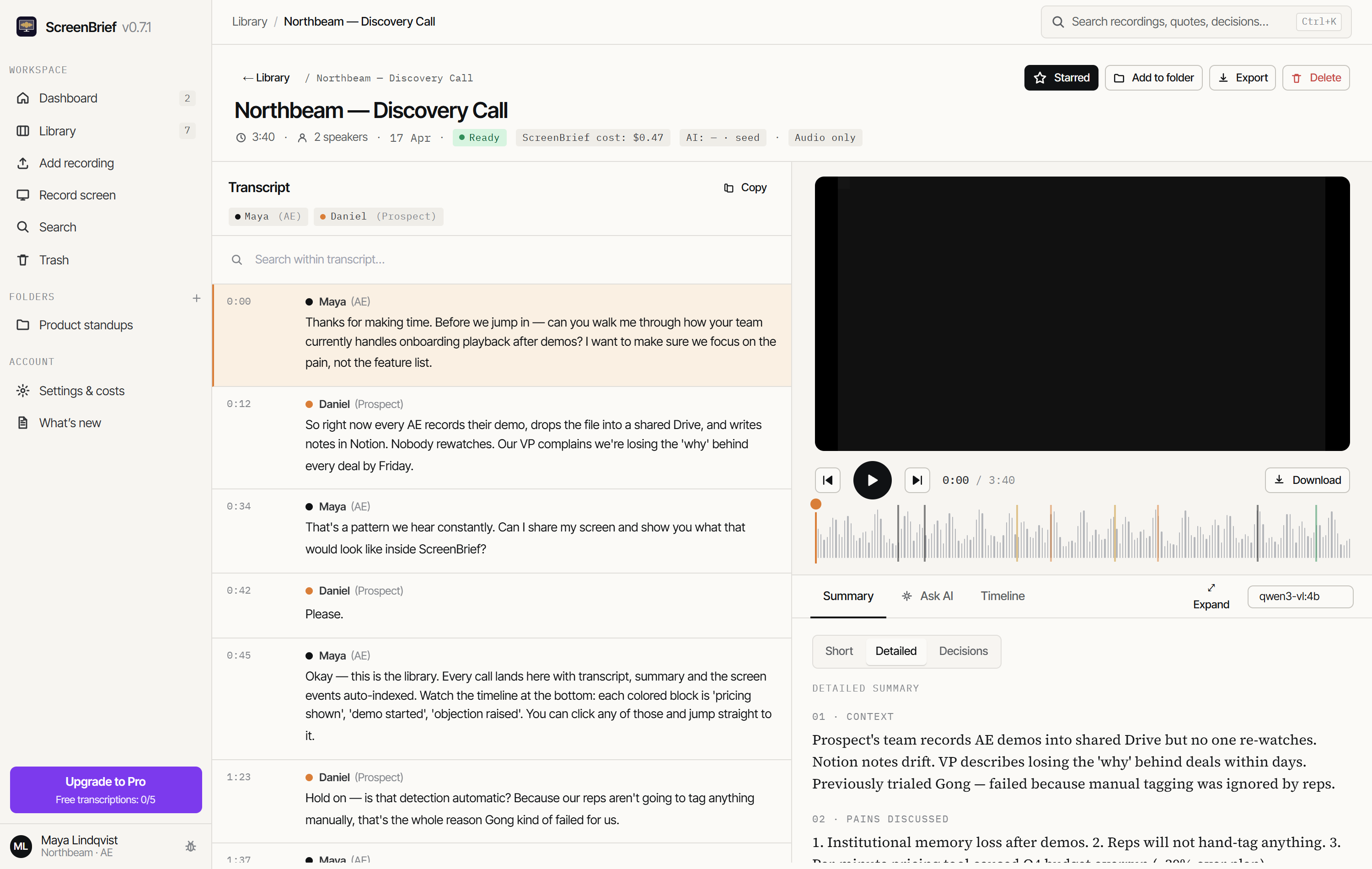
Where Teams keeps the recording
Microsoft Teams saves meeting recordings as MP4 in the OneDrive of the person who started recording, or in the channel's SharePoint, inside a “Recordings” folder. A link to the recording also appears in the meeting chat.
Open OneDrive or SharePoint in the browser, find the file and download it. If OneDrive is synced to your computer, the file is inside the OneDrive folder in your user profile and you can pick it directly. Teams recordings are often covered by the organisation's retention policy, so the file may disappear after a few weeks; download it early.
Where Zoom keeps the recording
Zoom has two modes. A local recording lands on your disk, by default in Documents, subfolder Zoom, where the meeting ends up as an MP4 video plus a separate M4A audio file. For transcription alone the M4A is enough; it is smaller and processes faster. If you want to analyse the screen later as well, load the MP4.
A cloud recording has to be downloaded from your Zoom account in the browser, from the recordings section. Zoom offers the video, the audio and sometimes its own transcript there; for ScreenBrief download the video or audio file. Pasting a Zoom recording link will not work, because such a link needs a Zoom login; ScreenBrief declines it and says why.
Where Google Meet keeps the recording
Google Meet saves the recording to the organiser's Google Drive, in a “Meet Recordings” folder, as MP4. Whether recording is available depends on the Google Workspace plan, and the file shows up on Drive with a delay after the meeting ends.
You have two routes. First: download the MP4 from Drive and pick the file. Second: if the recording is shared publicly by link, paste the Drive link into ScreenBrief; the app rewrites it into a direct download and fetches the file. A meet.google.com meeting link is not a link to a file and will not be accepted.
What stays on the computer and what leaves
Stays on disk
- The recording file you picked and its copy in the ScreenBrief library.
- The transcript computed by local Whisper, with speaker labels and timestamps.
- The app database: transcripts, summaries, decisions, tasks and chat history.
May leave, if you choose so
- The transcript text to an external AI provider, when you pick one for summaries and chat instead of local Ollama.
- The audio to an external provider, when you pick API transcription instead of local Whisper.
- A recording taken from a Google Drive link is downloaded from Drive, so Google sees that download like any other.
The details are in the guide on transcription without the cloud. If you want the summary to be produced on your computer as well, see the Ollama guide.
What to check before you send the notes on
- Names and company names. Speech recognition mangles rare names, and the summarising model repeats them.
- Dates and deadlines. If the call said “by the end of the week”, the notes must not contain a specific date nobody said.
- Sentences with “not”, and agreements withdrawn later in the call. Something retracted in the last minutes must not end up on the decisions list.
- Who took the task. A proposal is not a commitment; check in the transcript whether someone actually accepted it.
The fastest check is the chat with the recording: ask about a specific decision and the answer comes with a reference to the minute you can play back. The AI output is a draft to verify, not minutes.
When this is the wrong choice
- When you need a live transcript during the meeting. ScreenBrief works on a finished recording.
- When recordings should be pulled from a Zoom or Meet account automatically, without you. That would need a login integration the app does not have.
- When you have no right to record the call or to process its content. Participants' consent and your organisation's rules come before convenience.
Try it on your own recording
The first 5 transcriptions are free, and with the local model they need no API key at all.
Get it from Microsoft StoreThis describes ScreenBrief 0.7.8. Details of how data is handled: privacy policy.