Windows guide
How to create local meeting summaries with Ollama on Windows
To create meeting summaries with Ollama, first transcribe the recording, then connect ScreenBrief to a downloaded local Ollama model on the same computer. The speech model turns audio into text; Ollama uses that text for notes, tasks and chat. Start with a short recording containing a clear decision so you can check the output against the source.
What you need
- ScreenBrief from Microsoft Store on Windows 10/11 x64 and a short test recording without private information. The download includes 5 free transcriptions.
- Ollama installed from the official Windows download, plus a downloaded local model. Installing the application alone does not prepare a model.
- Enough disk space and memory for the chosen speech and text models. Start with a model suited to your hardware; download size and memory needed during generation are different.
- Internet access for installation and model downloads. Ollama requires Windows 10 22H2 or newer; consult its Windows documentation for current requirements.
Watch the ScreenBrief demo to see the transcript, summary and answers with citations pointing to the relevant minute of the recording.
1. Prepare the transcript
- Select local transcription in ScreenBrief settings and download the required speech model.
- Choose Add recording and import a short audio or video file. Leave screen analysis off while you check speech and text processing.
- Start transcription. Read the result and check names, numbers and sentences containing “not” against playback.
Ollama does not replace the speech recognition stage. If you choose an external transcription provider, audio goes to that provider even when the later summary uses local Ollama. See the offline transcription guide for the data flow.
2. Connect ScreenBrief to a local Ollama model
- Start Ollama and download a local text model. Check that it is available for local use; access to an Ollama cloud model does not put that model on your disk.
- Open ScreenBrief settings and select local Ollama for summaries, analysis and chat.
- For Ollama on the same computer, keep the default local connection. Its standard address is http://127.0.0.1:11434. A custom address pointing at another computer sends your text there.
- Save and use Test connection. If the list is empty, make sure a local model has finished downloading in Ollama, then refresh or test the connection again.
- Select the downloaded model you want to use. This local connection needs no paid AI provider API key.
Ollama supports both local and cloud features. Its official FAQ explains local-only mode if you want to disable cloud features in Ollama itself. Check the endpoint and selected model in ScreenBrief as well.
3. Test a decision, a task and an open question
Use this illustrative test: Anna says “We are choosing the blue version of the page.” Jan says “I will prepare the mockup by Friday.” Anna adds “We will agree the budget later.” Record those sentences clearly, then transcribe and summarize them.
| Source statement | Expected notes | What needs correction |
|---|---|---|
| Choose the blue version | A decision to use the blue version | A missing or different color decision |
| Jan will prepare the mockup by Friday | A mockup task assigned to Jan, due Friday | A different owner or an invented calendar date |
| Agree the budget later | Budget remains open | An agreed amount, owner or deadline without evidence |
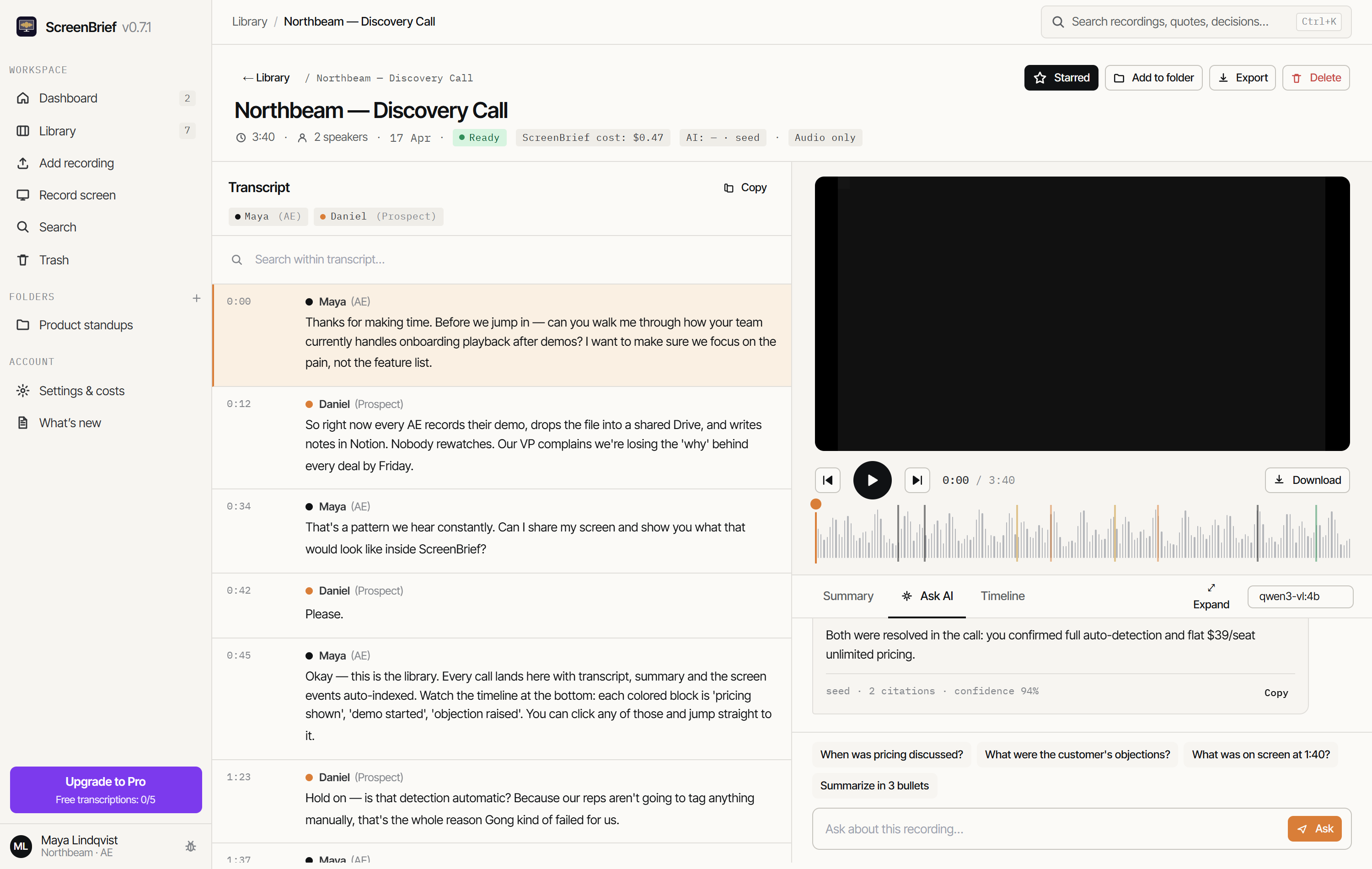
Ask the recording chat “Which version did we choose, and where was it agreed?” Read the citation, click its timestamp and listen to the statement. Check that the answer follows the source. A successful connection test proves availability, not the quality of the generated notes.
What our short local test actually showed
In a ScreenBrief 0.7.8 test on 9 September 2026, local qwen3-vl:4b processed a 20-second recording of the color example. The transcript was correct, but the summary invented context and the decision list omitted the color choice. Chat identified the blue version and cited 0:02; clicking the citation moved playback to that statement.
That historical test covered one short recording and model configuration. It is not a guarantee for the current app or every model. Keep the same test recording when comparing models, and check whether decisions and withdrawn tasks survive correctly. The local-model action-item benchmark provides a longer example and its limitations.
Troubleshoot the stage that failed
| Symptom | First check | Next step |
|---|---|---|
| Connection test fails | Ollama is running and the saved address is correct | Start Ollama or correct the address, then test again |
| Connected, but no models listed | A local model has finished downloading | Download one in Ollama and refresh the model list |
| Transcript ready, but no notes | Summary provider, selected model and connection | Resolve the AI setup and retry that stage |
| Slow generation or insufficient memory | Model size, recording length and available memory | Try a smaller model and the same short test |
| Fluent notes with wrong facts | The transcript passage behind the claim | Correct recognition errors and compare another model on the same example |
Add screen analysis after the text workflow works
Screen analysis is an additional stage that uses video frames. Before enabling it, check that the selected model supports images and where its provider runs. A local transcription setting alone does not make visual processing local. For a voice-only meeting, leave it off.
For recordings of software demos and presentations, the screen recording guide explains how visual events complement the spoken transcript.
Costs and the limits of local processing
ScreenBrief includes 5 transcriptions at no charge; further transcriptions require Pro. See the current Pro options. A downloaded local Ollama model uses your computer’s resources and does not incur summary API charges. External providers and cloud models have their own terms and costs.
For local audio and text processing, use local transcription plus a downloaded local Ollama model on the same computer. Installation, model downloads, updates and connected services can still use the internet. See the Ollama FAQ and ScreenBrief’s privacy policy for details.
Check one meeting summary against its source
Start with a short recording containing one decision and one task. Use the 5 free transcriptions to check the transcript, Ollama notes and a cited answer on your own computer.
Get it from Microsoft StoreDetails of how data is stored and transferred: privacy policy.