Windows guide
Transcribe a Zoom recording on Windows, including a local one
Zoom transcribes only cloud recordings, only on a paid account, and in English by default. It does not transcribe a recording saved to your computer at all, and on a free account it transcribes none. ScreenBrief on Windows transcribes any Zoom file on your own computer, with speaker labels and timestamps, in about 100 languages, without uploading the recording. Below: when Zoom alone is enough, where to find the file and how to transcribe it.
Get it from Microsoft Store Windows 10/11 · free download
Short answer
If you have a paid Zoom account and record to the cloud, Zoom transcribes the meeting afterwards: a VTT file with timestamps and participant names. Any language other than English has to be switched by hand. In every other case, a recording saved to your computer or a free account, you need the recording file and a program that transcribes it on your computer.
- Find the recording. By default Zoom saves it in Documents\Zoom, in a separate folder for each meeting.
- In ScreenBrief click “Add recording” and pick the M4A audio file or the MP4 video. You can also drag it into the window.
- If you know how many people spoke, choose the number in “How many speakers?” and enter the participants.
- Read the transcript with speakers and timestamps, then the summary, decisions and tasks from the AI model you choose.
When Zoom transcribes a recording itself, and when it does not
According to Zoom's help center, audio transcription works only for cloud recordings. It needs a Pro, Business, Education or Enterprise account, cloud recording turned on and audio transcription turned on. After the meeting Zoom first processes the recording, and the transcript arrives later as a separate VTT file with timestamps. Passages Zoom cannot attribute to a participant are labelled “Unknown Speaker”.
By default that transcript is generated in English. Polish and other languages are on the list, but you have to choose one for each recording: in the Zoom web portal, under Recordings & Transcripts, hover over the transcript file, click Change Language, and Zoom transcribes the audio again.
A recording saved to your computer gets no transcript: Zoom's help lists audio transcription among the features computer recording does not support. On a free account there is no recording transcription at all, because it needs a paid plan. If captions were on during the meeting, Zoom can save them with a computer recording as a VTT file. That is a record of the captions shown during the call, not a transcript of the recording.
Sources in Zoom's help center, as of 29 October 2026: using audio transcription for cloud recordings and starting a computer recording.
Where Zoom saves a computer recording and which file to pick
Computer recording works on a free account too, in the Zoom desktop app; it is not available on phones or iPads. By default the files go to C:\Users\[user name]\Documents\Zoom, which File Explorer shows as Documents\Zoom. Zoom creates a separate folder there for every recorded meeting. If someone changed the location, you will find it in the Zoom desktop app settings, on the Recording tab.
When the meeting ends, Zoom converts the recording and opens the folder with the files once it is done. Do not shut down the computer or close the laptop meanwhile, because an interrupted conversion can corrupt the files.
- audio….m4a: the meeting audio only. It is enough for a transcript, smaller and quicker to load.
- video….mp4: picture and sound. Pick it if you want to go back to what was on screen later.
- chat.txt and playback….m3u: the meeting chat and a playlist. Not needed for a transcript.
- double_click_to_convert_01.zoom: a recording Zoom did not convert. Double-click the file or convert the recording from the recordings list in the Zoom app; only then do the MP4 and M4A files appear. A transcription program cannot read the .zoom file.
Download a cloud recording from the Zoom web portal in the browser, from the Cloud recordings tab, and pick the downloaded file. Pasting a Zoom recording link will not work, because such a link needs a Zoom login; ScreenBrief says so and asks for the file. Source for the folder and the files: managing computer recordings in Zoom's help center.
Transcribing a Zoom recording in ScreenBrief, step by step
- Install ScreenBrief from Microsoft Store (Windows 10 or 11). The first transcription downloads a local speech model, so it needs the internet; later ones work without it.
- Click “Add recording” and pick the M4A or MP4 file from the meeting folder. A single file can be up to 6 GB.
- In “Participants” enter the people from the meeting, separated by commas; they are used to name the speakers. In “How many speakers?” choose the number if you know it, or leave “Automatic”.
- Click “Start transcription”. Without a working graphics card the fast Parakeet engine produces the text, with one it is Whisper large-v3-turbo. Both run on your computer.
- Read the transcript, fix names and company names, then export the result to Word, PDF, Markdown or SRT and VTT subtitles.
The app detects the meeting language by itself. If you always record in the same language, you can set it as the transcription language in Settings.
Speakers, timestamps, summary and Word export
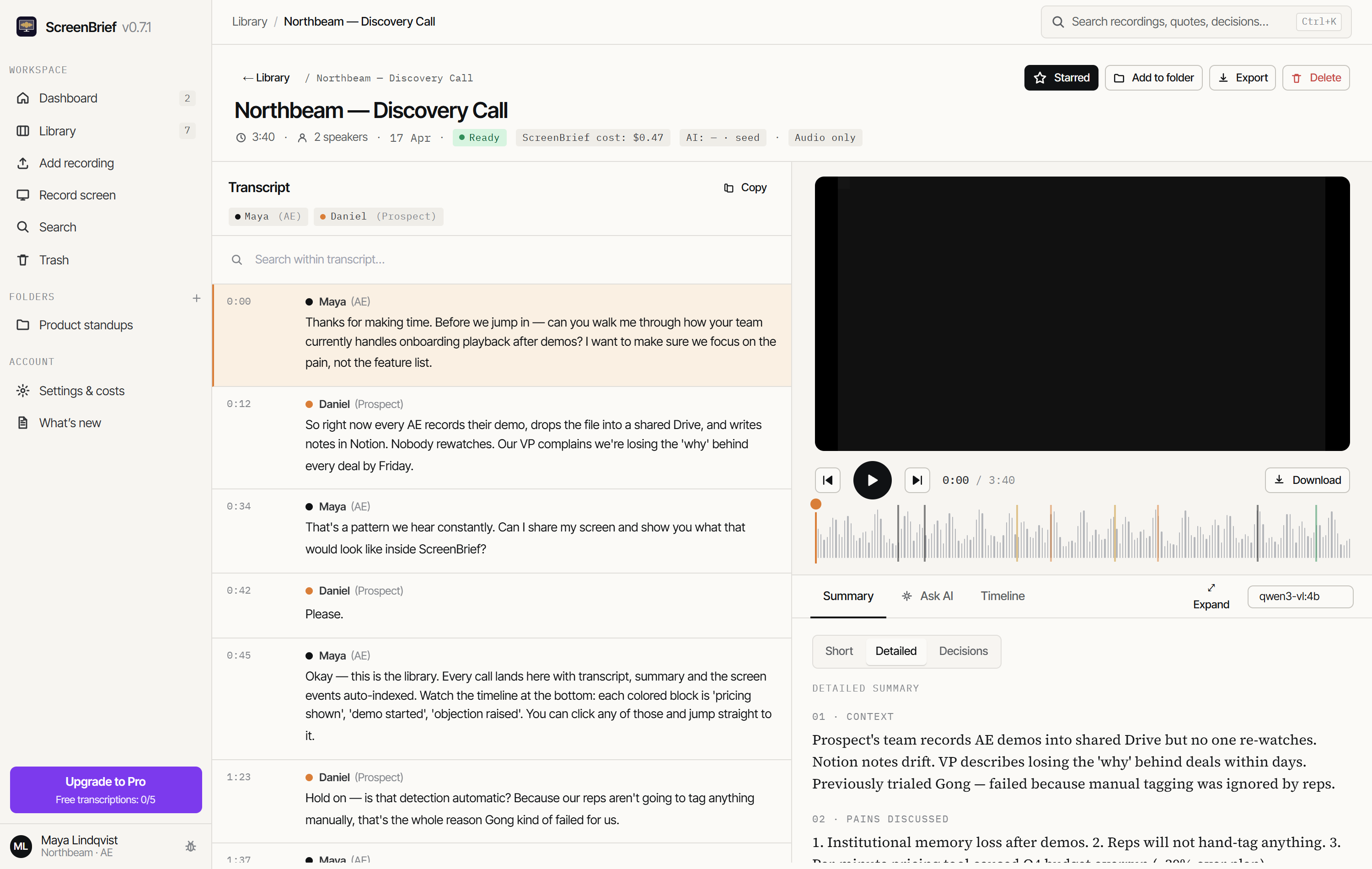
With a cloud recording Zoom knows who spoke, because it knows the meeting participants. A file on disk does not carry that, so ScreenBrief separates the voices by how they sound and labels them Speaker A, Speaker B and so on. You can rename a speaker on the recording page, and when one person ends up as two speakers, merge them with “Merge with…”.
Telling voices apart by sound does not always get the number of people right. If it is off, click the speaker count on the recording page, choose the right number and click “Recount”: the speakers are worked out again without transcribing the recording again. The number you give is binding.
- A transcript with a timestamp and a speaker on every line.
- A summary, decisions and tasks with an owner and a deadline, from the AI model you choose: local Ollama or your own API key.
- A chat with the recording that answers with a reference to the exact second, so you can play the passage back straight away.
- Word (.docx) export with the summaries, tasks with checkboxes, timed decisions and the speaker-labelled transcript, as well as PDF, Markdown and SRT and VTT subtitles.
What stays on the computer and what leaves
Stays on disk
- The Zoom file you picked and its copy in the ScreenBrief library.
- The transcript from the local speech model, with speakers and timestamps.
- The app database: transcripts, summaries, decisions, tasks and chat history.
May leave, if you choose so
- The transcript text to an external AI provider, when you pick one for summaries and chat instead of local Ollama. Email addresses and phone numbers are removed by default before any text reaches a model.
- The audio to an external provider, when you pick API transcription instead of the local model.
In Zoom, a cloud recording and its transcript live on Zoom's servers. Working without the cloud is covered in the guide on offline meeting transcription.
Zoom, a cloud service or ScreenBrief
Zoom's built-in transcription as its help center describes it (as of 29 October 2026), a typical cloud transcription service, and ScreenBrief. We have not measured Zoom's accuracy, so we do not rate it here.
| Criterion | Zoom, free account | Zoom Pro and above | Cloud transcription service | ScreenBrief on Windows |
|---|---|---|---|---|
| Recording transcription | None | Cloud recordings only | Of a file uploaded to the service | Of any file on disk |
| Recording saved to your computer | No transcript | No transcript | Has to be uploaded | You pick the M4A or MP4 file |
| Languages other than English | — | Supported, but the transcript is generated in English by default; you choose the language per recording and Zoom processes it again | Depends on the service | Detected automatically or set in Settings |
| Where the text is produced | — | In Zoom's cloud | On the service's servers | On your computer |
| Speakers | — | Meeting participants' names; an unattributed passage is “Unknown Speaker” | Depends on the service | Separated by voice; you correct names and the count yourself |
| Output | — | A VTT file with timestamps | Depends on the service | A transcript with speakers and times, summary, decisions and tasks; export to Word, PDF, SRT and VTT |
| Cost | — | A paid Zoom plan | The service's pricing | 5 transcriptions free, then ScreenBrief Pro |
To be fair: if you have a paid account, record to the cloud and only need the text, Zoom's transcript is right there and labels lines with participant names. ScreenBrief helps when the recording sits on your disk, when you do not want to send it anywhere, or when you need notes and tasks as well as the text. Where Teams and Google Meet save recordings is covered in the guide to Teams, Zoom and Meet recordings.
Questions about transcribing Zoom recordings
Does Zoom transcribe recordings in languages other than English?
Yes, but only cloud recordings on a paid account, and not straight away. By default Zoom transcribes in English; you choose another language in the Zoom web portal next to the transcript file (Change Language), and Zoom then processes the recording again. ScreenBrief detects the language by itself or uses the one set in Settings.
Can I transcribe a Zoom recording saved to my computer?
Not in Zoom itself, because computer recording does not support transcription. You can pick the M4A audio or MP4 video file from the Documents\Zoom folder in a transcription program instead. ScreenBrief transcribes it on your computer, with speakers and timestamps.
How long does transcribing a Zoom recording take?
It depends on the length of the recording and on the computer. ScreenBrief transcribes locally: with a working graphics card using Whisper large-v3-turbo, without one using the fast Parakeet engine. The summary and tasks take extra time that depends on the AI model you choose. In Zoom, a cloud recording's transcript arrives only after the recording has been processed, and changing the language means processing it again.
Is transcribing a Zoom recording free?
On a free account Zoom does not transcribe recordings, because the feature needs a Pro plan or higher. In ScreenBrief the first 5 transcriptions are free, and with the local model you need no API key. After that, ScreenBrief Pro costs 299 PLN once or 29 PLN a month as a subscription.
Does the recording leave my computer?
Not with the local speech model: the file and the transcript stay on your disk. Text goes to an external AI provider only if you pick one for summaries and chat, and audio only with API transcription. With local Ollama the summary is produced on your computer too.
Do I have to tell participants that I am recording the meeting?
Yes. Zoom shows participants a recording indicator, and people who dialled in by phone hear a message unless the host turns it off. Ask for consent before recording anyway, and say what the transcript will be used for. Your organisation's rules and data protection law come before convenience.
Try it on your own Zoom recording
The first 5 transcriptions are free, and with the local model they need no API key at all.
Get it from Microsoft Store